> ## Documentation Index
> Fetch the complete documentation index at: https://platform.minimaxi.com/docs/llms.txt
> Use this file to discover all available pages before exploring further.
# Cursor
> 在 Cursor 中使用最新的 MiniMax M 系列模型进行 AI 编程。
[**Cursor**](https://cursor.com) 是 Anysphere 出品的 AI-first IDE,基于 VS Code 二次开发,内置 Agent 与代码库理解能力。
## 安装 Cursor
1. 通过 [Cursor 官网](https://cursor.com/) 下载并安装 Cursor
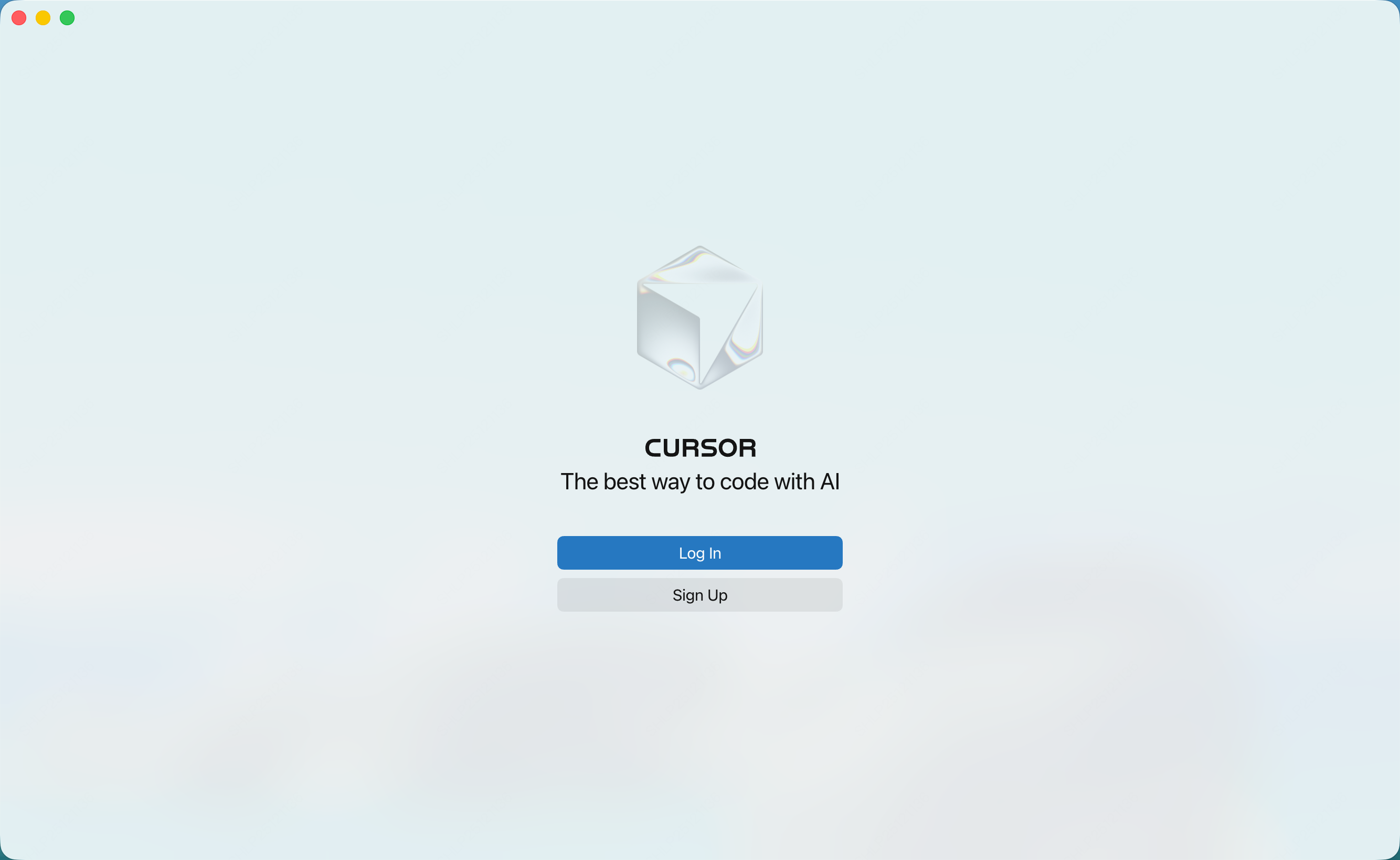
2. 打开 Cursor,点击 **Log In**,登录自己的 Cursor 账户。
## 配置 MiniMax API
**重要提示:使用前请先清除 OpenAI 环境变量**
在配置前,请确保清除以下 OpenAI 相关的环境变量,以免影响 MiniMax API 的正常使用:
* `OPENAI_API_KEY`
* `OPENAI_BASE_URL`
**注意:Cursor 仅支持订阅高级会员及以上的用户配置自定义模型**
若非Cursor高级会员,配置时将出现以下错误:
`The model MiniMax-M3.1-Flash-Preview does not work with your current plan or api key`
**已知问题:"Override OpenAI Base URL" 是全局设置**
开启后会作用到 Cursor 中**所有**已配置的 API Key——包括 Cursor 自带模型用的 Anthropic / GPT Key。Cursor 官方已确认此问题:当你设置 base URL 时,所有 API Key 都会受影响([社区帖](https://forum.cursor.com/t/anthropic-models-break-when-override-openai-baseurl-is-set/144899))。
如果开启 Override 后 Cursor 自带的 Claude / GPT 模型停止工作,请在不使用 MiniMax 时关闭 Override。Cursor 目前不支持按模型设置不同 base URL([open feature request](https://forum.cursor.com/t/custom-base-urls-for-each-custom-model/147219))。
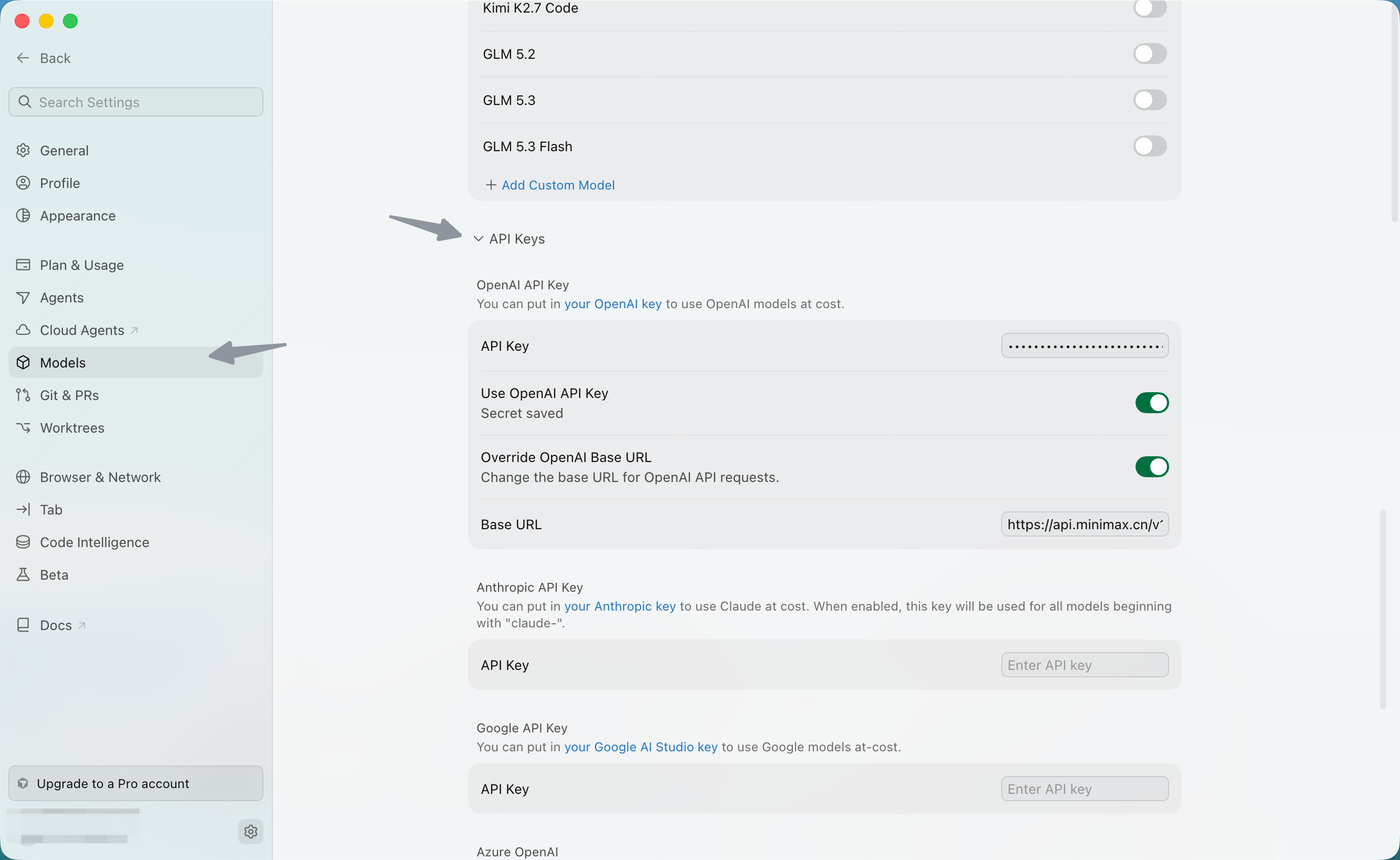
1. 点击左侧栏的 **"Models"**,进入模型配置页面
2. 展开 **"API Keys"** 部分,配置 API 信息:
* 勾选 **"Override OpenAI Base URL"**
* 在下方输入 MiniMax 的调用地址 `https://api.minimax.cn/v1`
3. 在 **OpenAI API Key** 输入框,输入从 [MiniMax 开放平台](https://platform.minimax.cn/console/plan) 获取的 **订阅 Key**
4. 开启 **Use OpenAI API Key**。
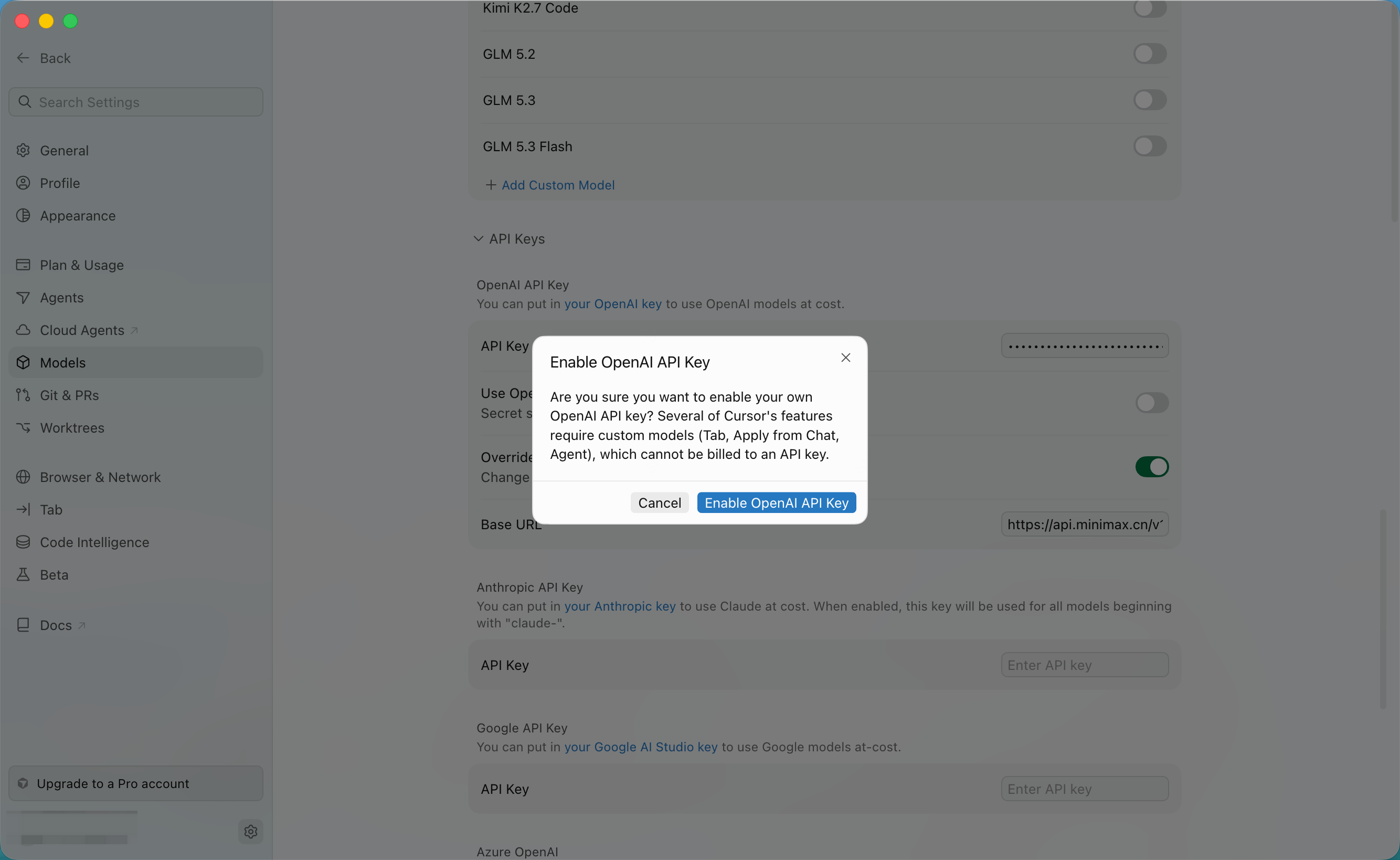
5. 在弹出的窗口中点击 **Enable OpenAI API Key**,完成确认。
6. 在 **Models** 板块的模型列表底部,点击 **Add Custom Model**。
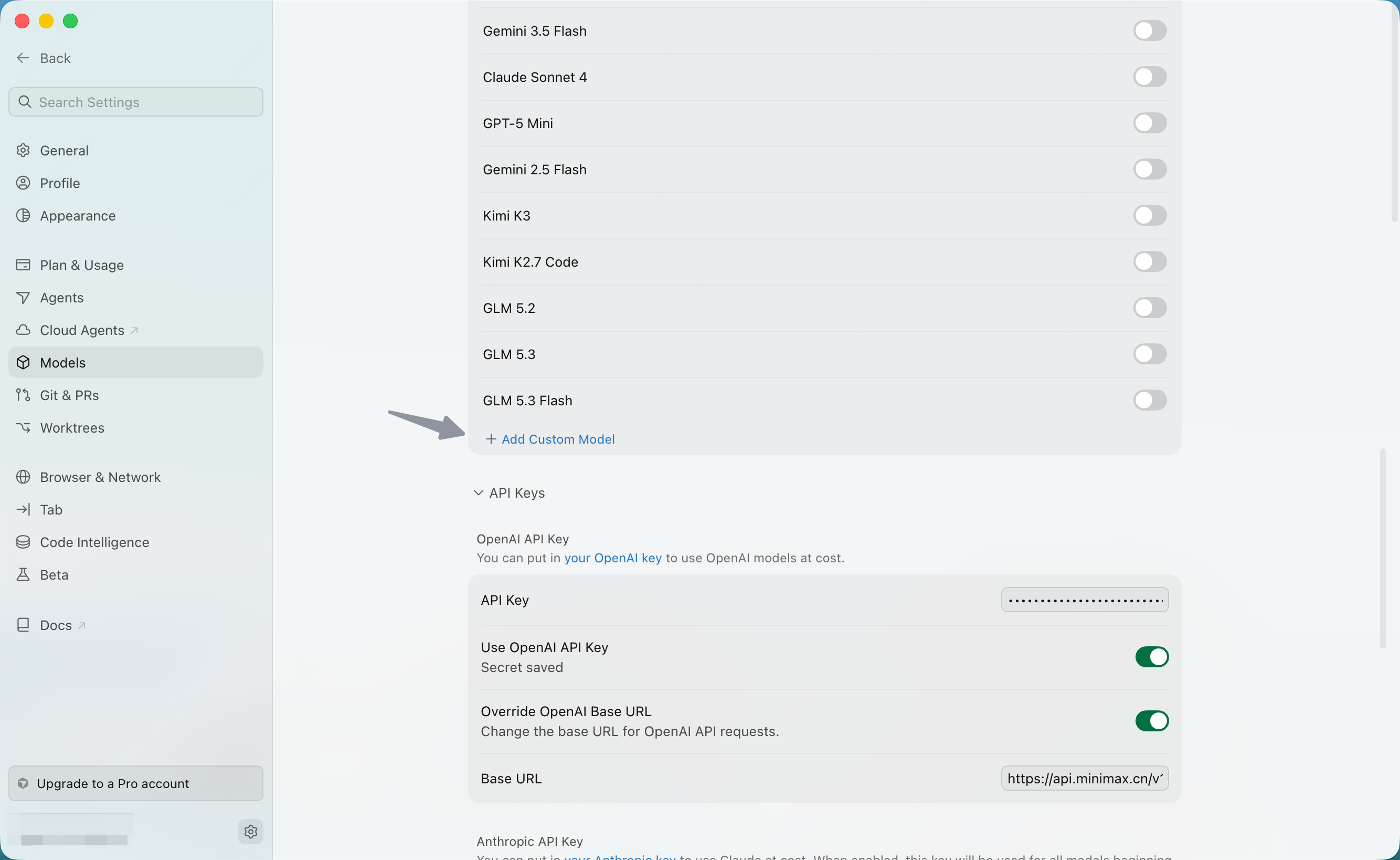
7. 输入模型名称"MiniMax-M3.1-Flash-Preview"后,点击"Add"按钮
模型名称需严格输入 `MiniMax-M3.1-Flash-Preview`(注意大小写,与 MiniMax 文档中保持一致)。
8. 启用刚添加的 "MiniMax-M3.1-Flash-Preview" 模型
9. 在聊天面板中选择 **"MiniMax-M3.1-Flash-Preview"** 模型,开始使用
**Cursor Tab 自动补全无法由 MiniMax 驱动。** Tab 是 Cursor Pro 自带能力,始终使用 Cursor 自家模型,不受你的自定义 API Key 影响。Custom Model 仅在 Chat / Composer / Edit 等模式下生效。
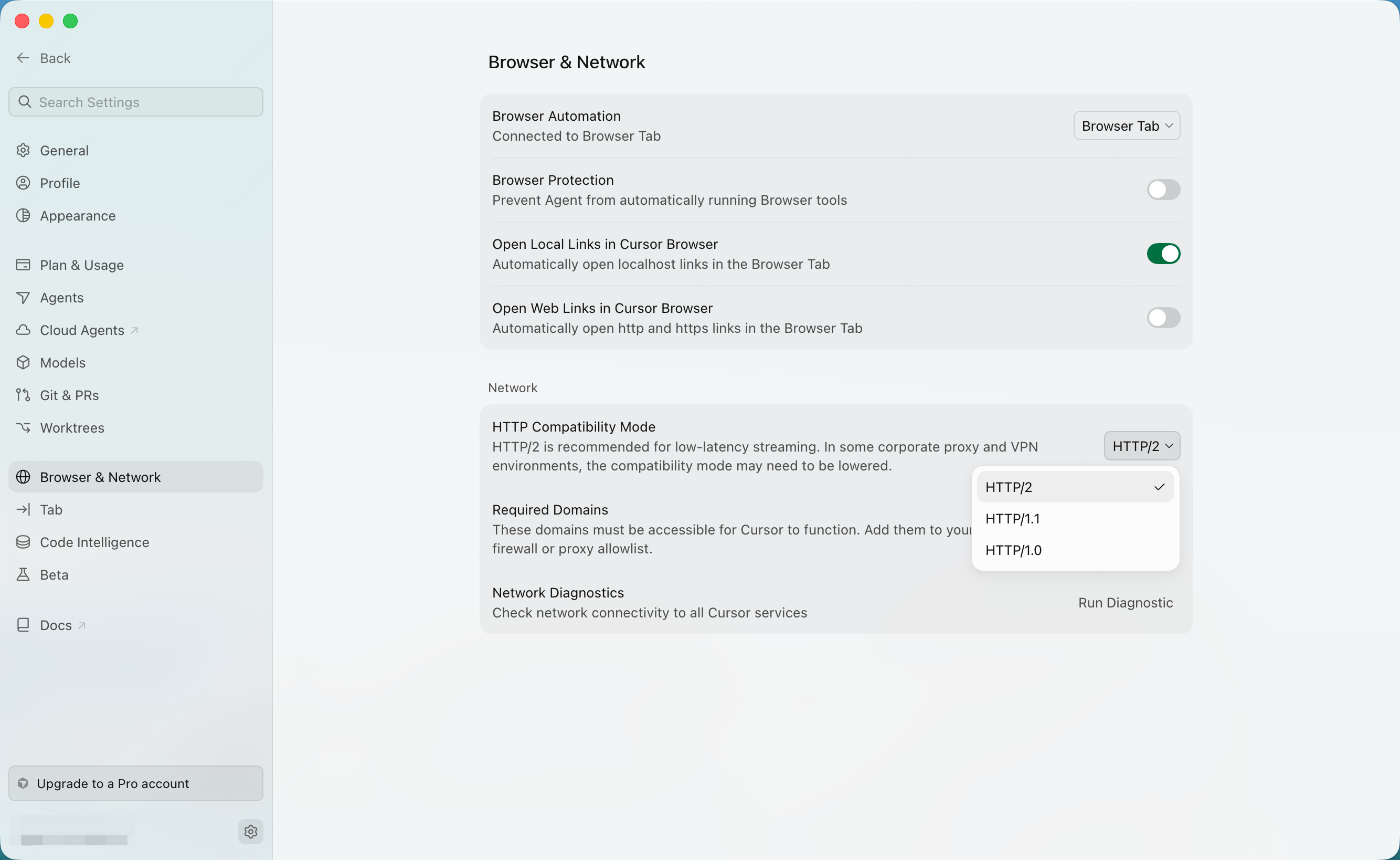
如果模型没有返回内容,可打开 Cursor 设置中的 **Browser & Network**,在 **HTTP Compatibility Mode** 中尝试选择 **HTTP/1.0**。